



If you’re about to design flyers, business cards, menus, posters, or any printed materials and need to send your file to a printing house, the first question you’ll often be asked is:
“Is your file 300 DPI?”
Many people may wonder…
-
What is DPI?
-
Why does it have to be 300 DPI?
-
What happens if the DPI is low?
-
How much DPI is required for each type of print job?
-
Where do you set it in design software?
In this article, Tonchabub Printing Chanthaburi will explain everything as clearly as possible, because DPI is truly the key to real print quality!
What is DPI? (A simple definition you can understand in 1 minute)
DPI stands for “Dots Per Inch”
It literally means “the number of dots per 1 inch.”
In printed materials, images are formed by a large number of tiny “ink dots.”
The more dots there are → the more detailed and sharper the image becomes, with smoother colors and less pixelation.
Simple examples
-
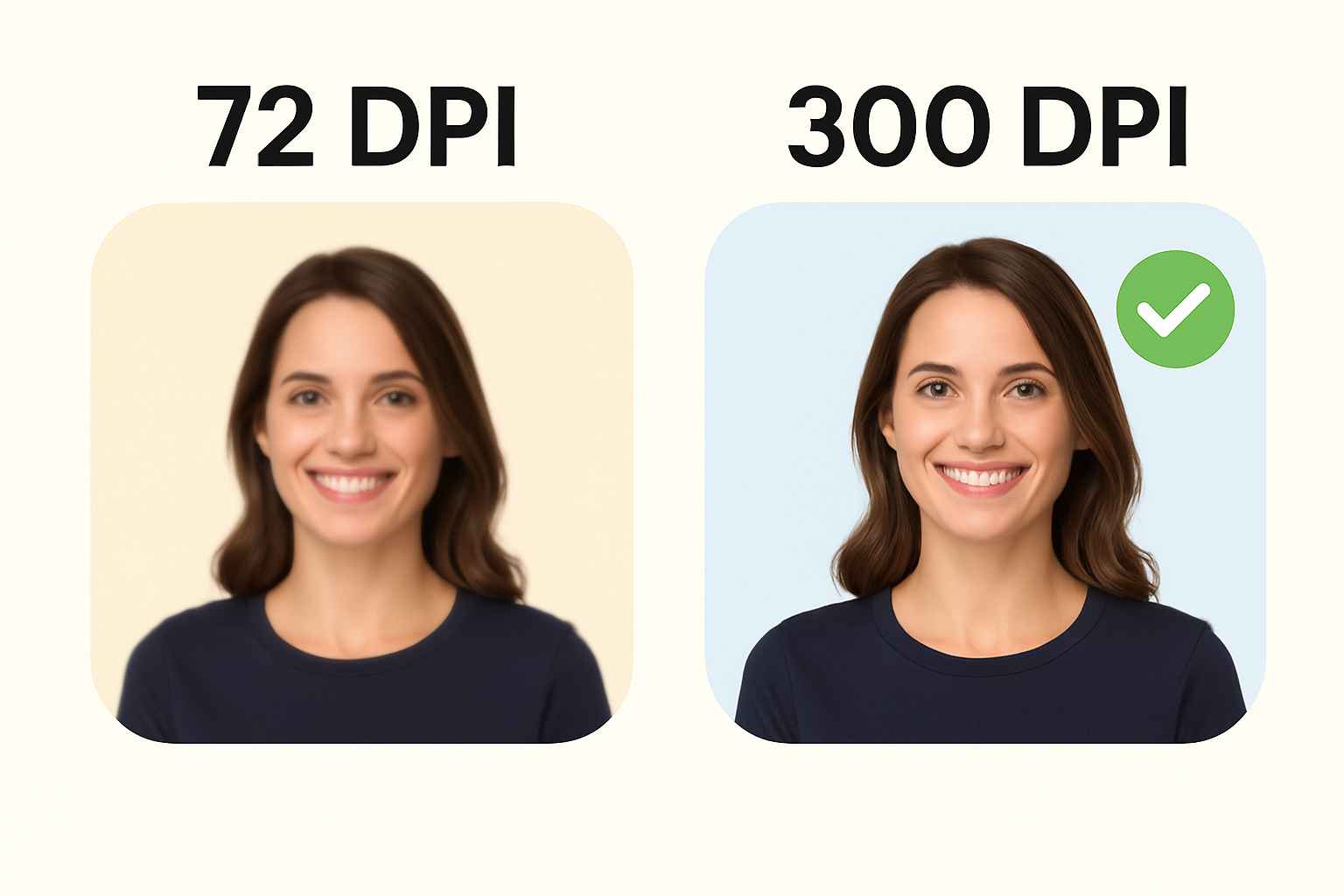
72 DPI = 72 ink dots within 1 inch → rough image, suitable for screens
-
300 DPI = 300 ink dots within 1 inch → sharp image, suitable for printing
So, DPI is the value that directly determines print quality.
How is DPI different from PPI? Why do many people confuse them?
PPI (Pixels Per Inch)
→ relates to “pixels on a screen,” such as phones and computers
DPI (Dots Per Inch)
→ relates to “ink dots on paper,” meaning real printed output
Quick summary
-
Work on screen = PPI
-
Send for printing = DPI
But in real-world usage, printers and customers (about 95%) commonly call it “DPI” for simplicity.
Why does printing require 300 DPI?
Because 300 DPI is the level our eyes perceive as the sharpest “without seeing the dots” when printed on paper.
Why print shops require 300 DPI files
-
Images won’t look pixelated even when viewed up close
Printed materials are often checked at close range, such as business cards, flyers, and packaging boxes. -
Smoother, more detailed, and more consistent colors
More ink dots → smoother color blending. -
Ideal for small to medium print items
Such as business cards, cards, menus, and brochures. -
An international standard for high-quality printing
300 DPI is used worldwide.
No matter which print shop you send your file to, it will be supported everywhere. -
Helps text stay crisp — not blurry or fuzzy
Especially for small fonts, around 6–10 pt.
Simply put: if your file is below 300 DPI → the print won’t be sharp.
Example comparison: 72 DPI vs 300 DPI
Imagine the same image printed on paper:
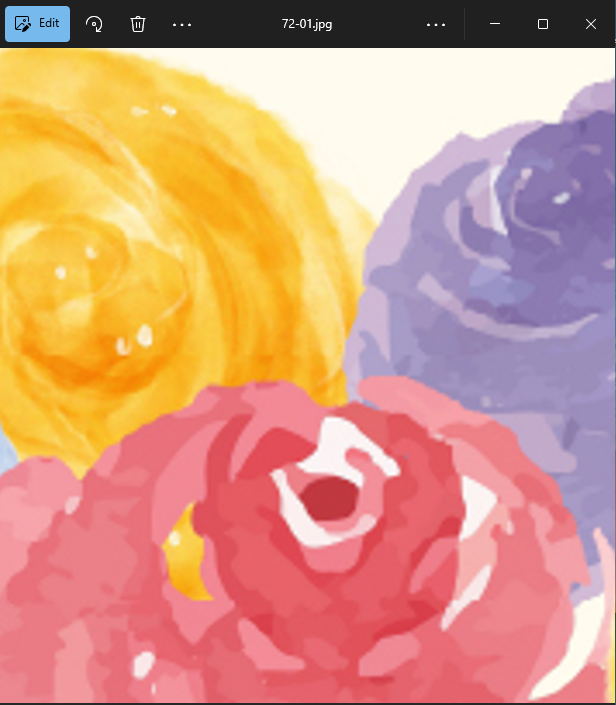
72 DPI example
-
Pixelated when enlarged
-
Jagged edges like stair-steps (Jaggy)
-
Colors are not smooth and appear banded
-
Text looks blurry and is hard to read
-
Suitable only for on-screen use (Web / Social)
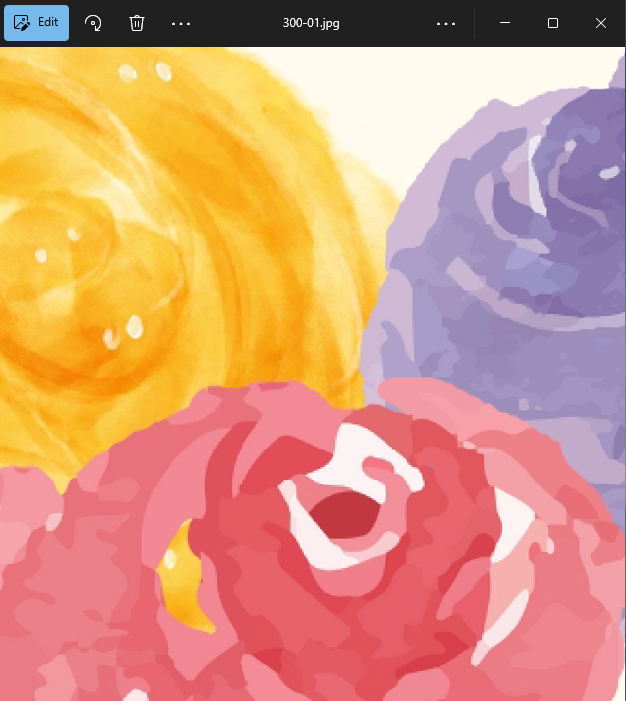
300 DPI example
-
Still sharp when enlarged
-
Smooth image like the original
-
Beautiful, detailed colors
-
Crisp, clear text
-
Suitable for all types of real printing
Easy-to-understand comparison
| DPI | Quality | Used for |
|---|---|---|
| 72 DPI | Low / pixelated | Online use only |
| 150 DPI | Medium | Large vinyl banners viewed from a distance |
| 300 DPI | Highest | Business cards, posters, flyers, packaging boxes |
Recommended DPI table for each type of print job
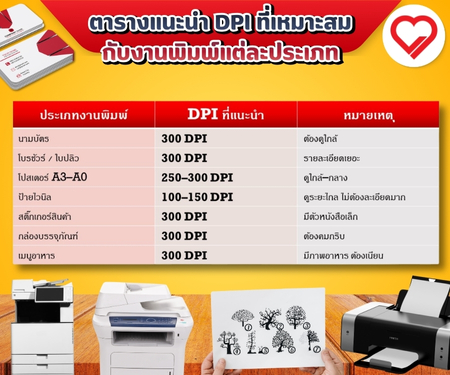
The principle is: close viewing → higher DPI / far viewing → lower DPI is acceptable
What happens if the DPI is low and you send the file to print?
These are the most common problems customers face, especially with files taken from:
-
Facebook
-
LINE
-
Screenshots
-
Mobile phone images
Problems caused by low DPI
-
Pixelated, fuzzy, blurry images
-
Unclear text
-
Color shifts
-
Looks unprofessional
-
Damages brand image
A print shop can only make minor adjustments, but it cannot restore a pixelated image to become 100% sharp again. Therefore, setting the correct DPI from the beginning is the most important.
How to set DPI in design software (Illustrator / Photoshop)
Below are easy-to-follow settings that work in real life 100%.
How to set DPI in Adobe Illustrator (AI)
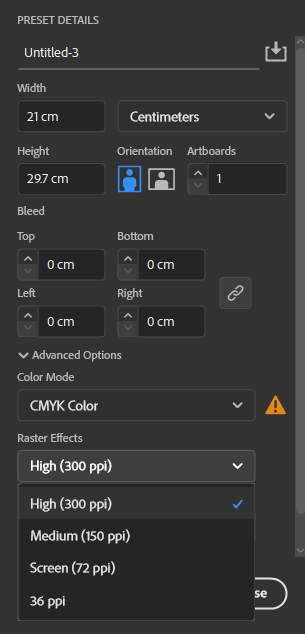
✔ When creating a new file
-
Go to File > New
-
In Raster Effects → select 300 ppi
-
Set the print size (e.g., A4, A5, 9×5.5 cm)
-
The color mode should be CMYK for printing
✔ When editing an existing file
-
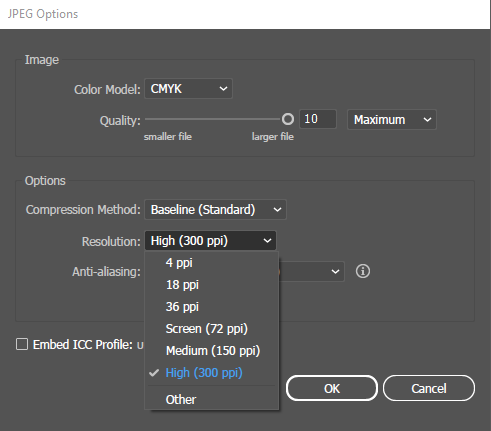
Go to Effect > Document Raster Effects Settings…
-
Change from 72 ppi → 300 ppi
- Save
Page setup Export settings for images
How to set DPI in Adobe Photoshop (PSD)
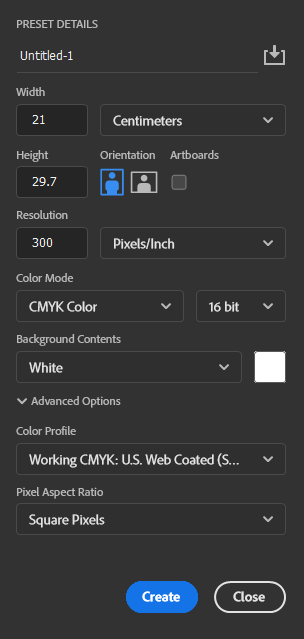
✔ From the very beginning (creating a new file)
-
File > New
-
Resolution: enter 300 DPI
-
Color Mode: CMYK (for printing)
-
Select the document size you need
✔ Check how many DPI your file currently has
-
Image > Image Size
-
Look at the Resolution field
-
If it’s not 300 DPI → change it to 300
Page setup Export settings for images
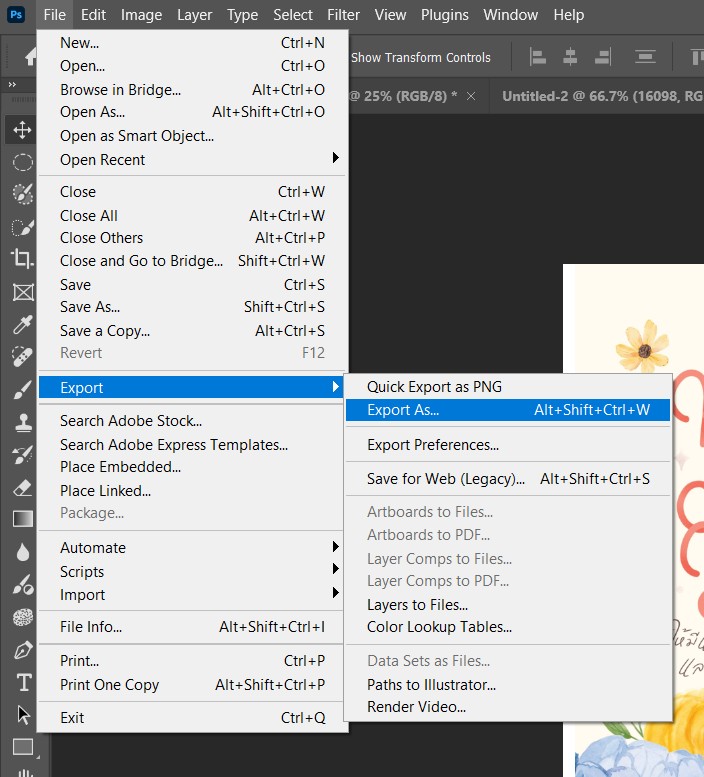
Note:
If you change the DPI but do not check “Resample” → the actual pixel dimensions will not change.
If you check “Resample” → the software will try to increase sharpness, but the original quality may still not be as good as a file that was truly created at 300 DPI from the start.
Can mobile photos be printed at 300 DPI?
The answer is… Yes, but with limitations.
Most smartphones can take photos large enough, but the files are often RGB / 72 DPI. When printed, they may not be as sharp as files from a camera or professionally designed artwork.
Result
-
It can be improved to a certain level
-
Food photos / product photos may not be very sharp
-
Always use the largest original file possible
300 DPI is not necessary for every job! Which jobs can use a lower DPI?
Jobs that are viewed from a distance, such as:
-
Vinyl banners
-
Billboards
-
Roadside banners
When the viewing distance is far (5–20 meters), people won’t see the dots, so 100–150 DPI is enough and can save time, reduce file size, and make the printer work faster.
FAQ (Frequently Asked Questions – SEO Friendly)
Q: Is DPI different from image resolution?
A: DPI determines print density, while resolution refers to the total number of pixels in the entire image.
Q: What happens if I send a 72 DPI file for printing?
A: The image will look pixelated and blurry, text will be unclear, and colors may be uneven—resulting in low print quality.
Q: Do vinyl banners need 300 DPI?
A: Not necessary. 100–150 DPI is sufficient because they are viewed from a distance.
Q: Can I take a photo on my phone and change it to 300 DPI in software?
A: Yes, but the quality will still not be as good as a file that was originally captured or designed in high quality.
Q: Do I need to set DPI for a PDF?
A: You need to ensure the images/graphics inside are high DPI, but the PDF will package everything together for output.
Order high-quality 300 DPI printing with Tonchabub Printing Chanthaburi
If you want printing that is sharp, vibrant, smooth, and not pixelated,
Tonchabub Printing Chanthaburi is ready to support you every step of the way
—from setting up your files → checking resolution → producing professional-quality prints.
- We print business cards, flyers, brochures, menus, stickers, and packaging boxes
- Modern printing machines with stable color and crisp results on every piece
- Nationwide delivery; rush jobs available
Contact: 095 956 3287 , 086 302 3383
Line: @tonchabub

“Great print quality starts with the right resolution.
And we’re ready to make every job look its best — beautiful results every time from Tonchabub Printing Chanthaburi.”